Start with the computer that filled the iPod
The easiest migration begins with the original computer, its external music drive or a backup of its audio folders. You do not need to extract recordings from the iPod if the source files still exist.
Look for actual audio files, not just an iTunes database. Open a few directly from the folder to confirm that the collection is present. An old library window can list songs whose originals were on a drive that is no longer attached.
Choose the route that matches your collection
| What you still have | Practical next step |
|---|---|
| Original computer or media backup | Copy and verify the audio files before transferring them to the iPhone. |
| iTunes Store purchases | Check your purchase history and Apple’s supported purchase-transfer options. |
| CD rips with no computer copy | Look for a backup or the original CDs; purchase transfer does not recover these. |
| The only copy is on the iPod | Identify the exact model and compatible recovery method before changing its contents. |
“iPod” covers several different device families. Instructions for an iPod classic should not be assumed to work on an iPod touch. A cable that fits does not establish a supported extraction route.
Purchase transfer has a limited scope
Apple documents transferring iTunes Store purchases to a PC in iTunes, including authorising the computer and using File > Devices > Transfer Purchases. Check that the workflow supports your particular device and software.
This is not a general reverse-sync command for every song on an iPod. A CD rip or a download bought elsewhere is not an iTunes Store purchase. Do not use that menu’s name as evidence that the whole collection has been backed up.
If the iPod holds the only copy
Do not approve an erase, restore or replacement sync while the recordings are unprotected. First record the model, the computer system available and whether the device is recognised. Any recovery tool must be evaluated for that combination.
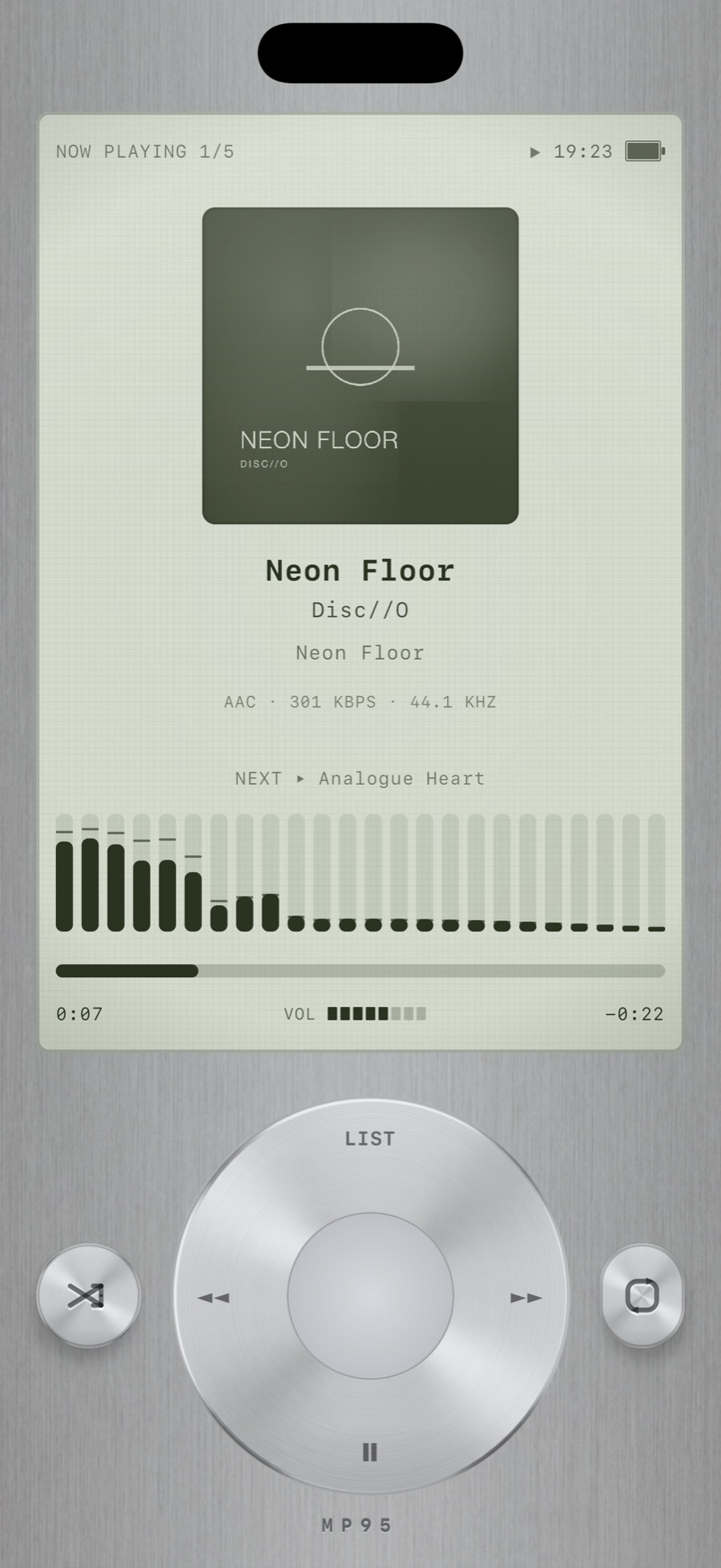
MP95 is a music player, not an iPod recovery utility. It does not provide a direct old-iPod-to-iPhone extraction workflow. Recovery is model- and software-specific. Resolve that step before following the file-import workflow below.
Once you have ordinary audio files
Keep an untouched backup on the computer. Transfer a small sample to the iPhone using the file import instructions, add it to MP95 and verify playback, tags and album order. Copy the rest only after that sample works.
The wheel-style player in MP95 offers a familiar way to browse and listen. Its appearance does not import the old device’s playlists, ratings or play counts. Preserve a separate record of those if they matter, and check the new library before retiring the original hardware.