Find the files before moving them
On Android, open a file manager and locate your music. Look in Music, Downloads and any SD card you use. A collection of MP3, FLAC or M4A files can be copied. An offline download inside Spotify or another subscription app is different: it is managed by that service and is not a folder of transferable songs.
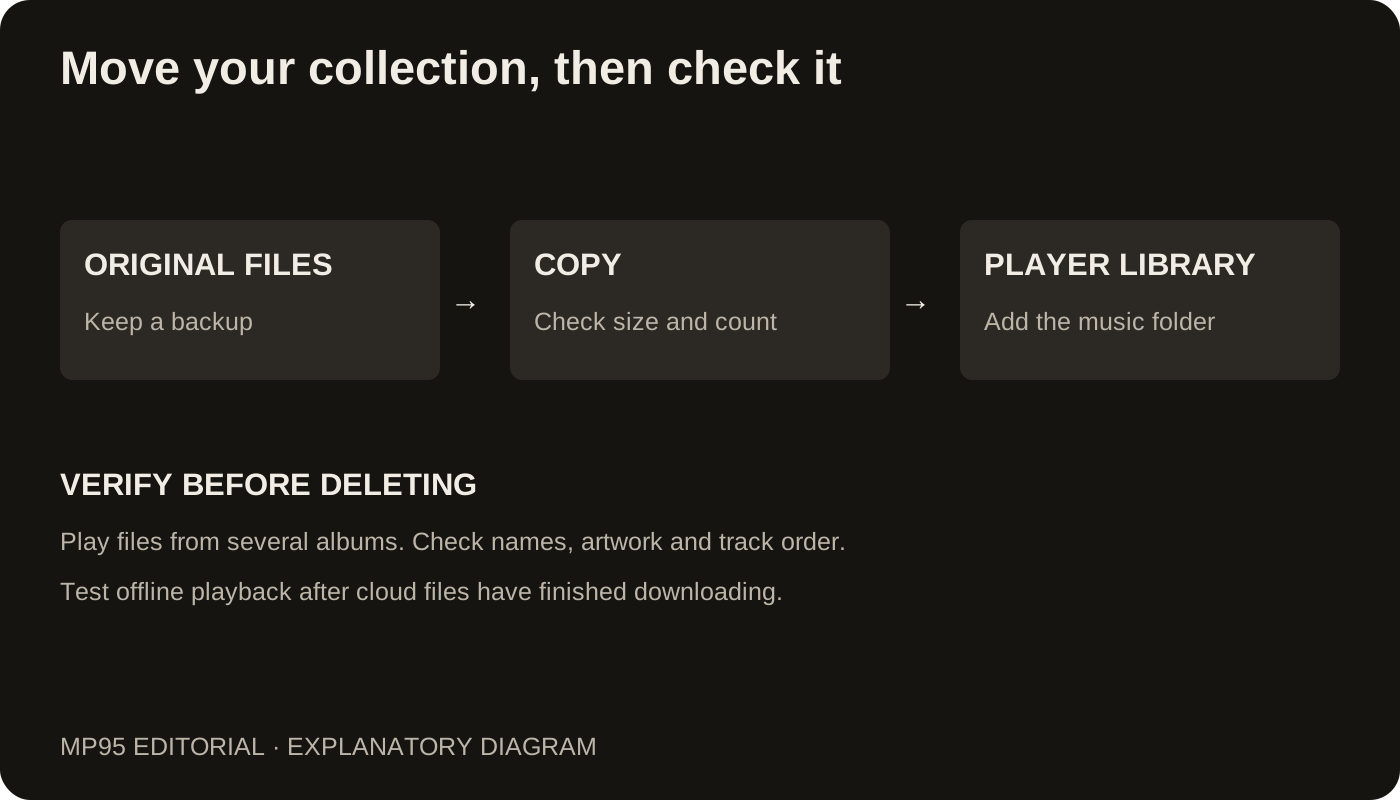
Keep the Android phone and its original files until you have checked the new library. Record the size of the music folder and note a few albums you know well, including a multi-disc release or an album with non-Latin titles if you have one.
Use a computer as the staging point
- Connect the Android phone to a computer, choose its file-transfer mode and copy the music folders to the computer. An SD card reader is another route if the collection lives on a removable card.
- Open several copied files on the computer. Compare folder sizes and make sure you copied the audio, not just shortcuts or cover images.
- Transfer the folders to the iPhone using an app's file-sharing area, iCloud Drive or a compatible external drive.
- In MP95, open the library and add the folder containing the transferred files.
On a Mac, Finder's Files tab provides app file sharing; on Windows, use the Apple Devices app. Our iPhone transfer guide explains the destination side. Android-to-computer transfer tools vary by computer and phone, so check your phone maker's instructions if the device does not appear.
Choose your destination library
You have two routes. Apple's manual migration instructions describe moving music through a computer into the Music ecosystem. A file-based player such as MP95 can instead use the copied audio files. MP95 supports FLAC directly, so those files do not need conversion just to enter its library.
These are separate libraries. Adding files to MP95 does not also add them to Apple's Music app. Pick the route that matches where you intend to listen before transferring the entire collection twice.
What happens to playlists and favourites?
Copying songs does not automatically copy the old player's database. Favourites, play counts and playlists may stay in the Android app. Do not assume that an exported playlist will import into the new player: playlist formats and file paths need compatible support at both ends.
For an important playlist, keep a text list or screenshots of its contents before retiring the old phone. You can rebuild a playlist in MP95 once its tracks are present. That is slower than copying a folder, but it avoids discovering a missing favourite after wiping the old device.
Check the move before deleting anything
Compare album and track counts, allowing for the same song appearing in more than one source folder. Check artwork, accented names and disc order. Play the beginning and end of a few long tracks. Finally, disconnect from the internet and play tracks from different albums.
If names are wrong on both devices, the transfer probably preserved an existing tag problem. Fix the tags rather than repeatedly copying the same files. Keep the computer copy as a backup after the migration.