Choose a widget for the music you own
A music widget is an extension of a player. MP95 plays imported files, including MP3, AAC, ALAC and FLAC. Its widget reflects playback in MP95; it does not act as a universal remote for Spotify or another app. Start with our music import guide if your albums are still on a computer.
How to add a music widget on iPhone
- Install MP95, open it and play an imported track.
- Touch and hold an empty area of the Home Screen until editing starts.
- Tap Edit, then Add Widget. On older iOS versions, use the plus button.
- Search for MP95 and select its Now Playing widget.
- Choose small, medium or large, tap Add Widget and finish editing.
Apple explains the system steps in its Home Screen widget guide. Button names depend on your iOS version.
Pick a size and a retro player
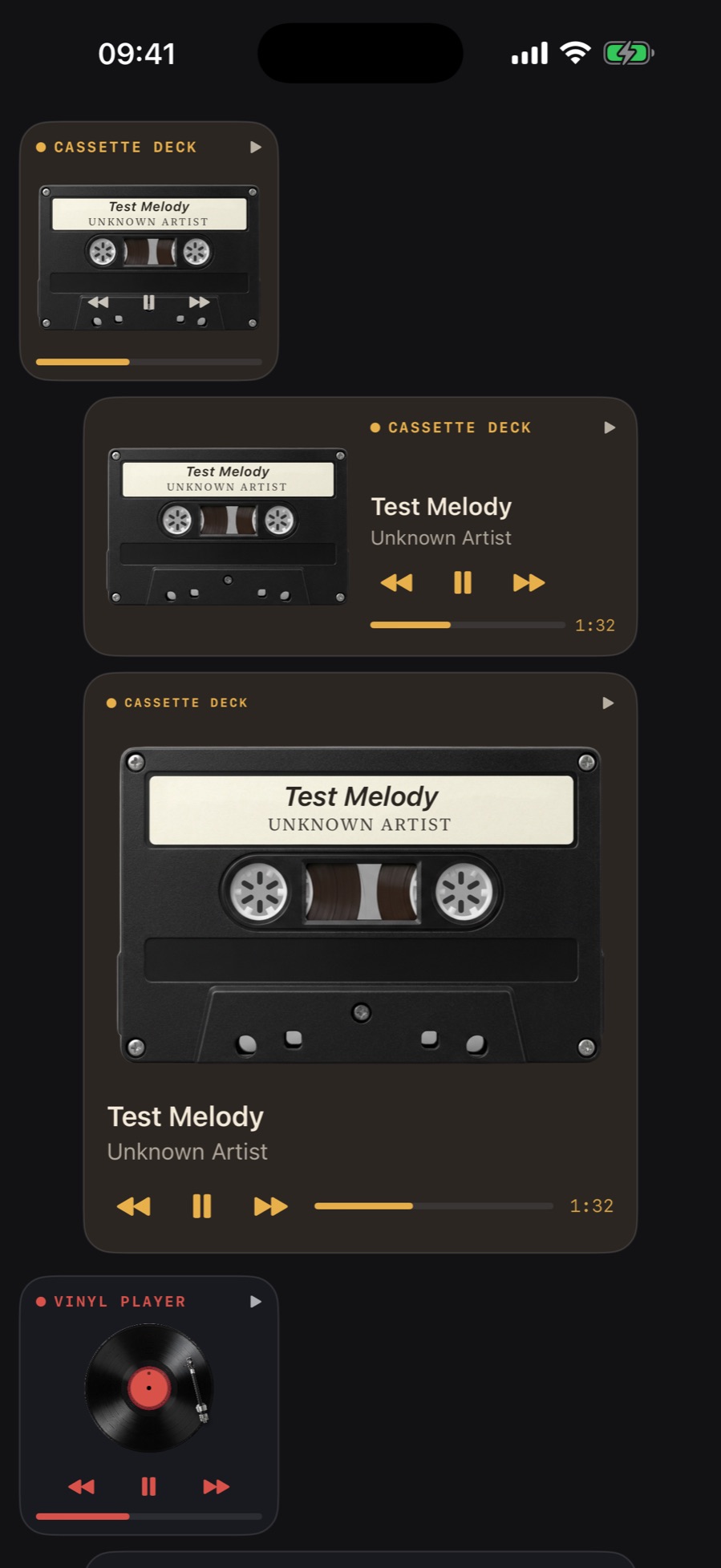
Small fits beside everyday apps. Medium gives the player more horizontal room. Large makes the machine the centre of the page. Try a long track title from your own library before arranging the rest of your icons.
The widget follows the active machine in MP95. Select the cassette deck, turntable or another available player in the app to change its appearance. A dark wallpaper works well with the cassette; a simple light background gives the click wheel space to stand out. Our retro Home Screen guide has more layout ideas.
Playback controls and their limits
On iOS 17 and later, play/pause, previous and next work directly in the widget. The click-wheel layout uses the left, right and bottom zones for those actions; menu and the centre open the app. Earlier systems use links into the app instead of interactive buttons.
Open the full player to browse albums, change the queue or adjust the sound. The widget's illustrated mechanism stays still; progress and elapsed time provide the playback information. It does not reproduce the full app's spinning records, reels or visualizers.
Missing widget or an old song title?
Launch MP95 after installing it, start a track and check the widget gallery again. If the display looks stale, open the app and confirm the intended track is playing. You can remove the widget and add it again if needed. iOS manages refreshes, so the Home Screen snapshot may lag behind the app.
Check your iOS version if buttons open the app: interactive controls require iOS 17 or later. For offline listening, download and import your files before disconnecting. A cloud-only file still needs an internet connection to download.
Frequently asked questions
Can MP95 widgets control Spotify?
No. They control the MP95 player and its imported music library.
Can I use a music widget without internet?
Yes, with music imported and stored locally in MP95. Download cloud-only files first.
Which iOS version supports widget playback buttons?
Interactive MP95 widget controls require iOS 17 or later.