Start with a reference you know
Pick a recording you know well and listen at a comfortable volume. Start with a flat EQ and turn off other sound effects while deciding what needs changing. Otherwise you may compensate for an effect with another effect and lose track of the cause.
Describe the problem before moving a band: bass is too heavy, vocals are hard to follow, cymbals are tiring. “Better sound” is too broad to check. Keep the headphones, fit and volume consistent while comparing settings.
Make one small change
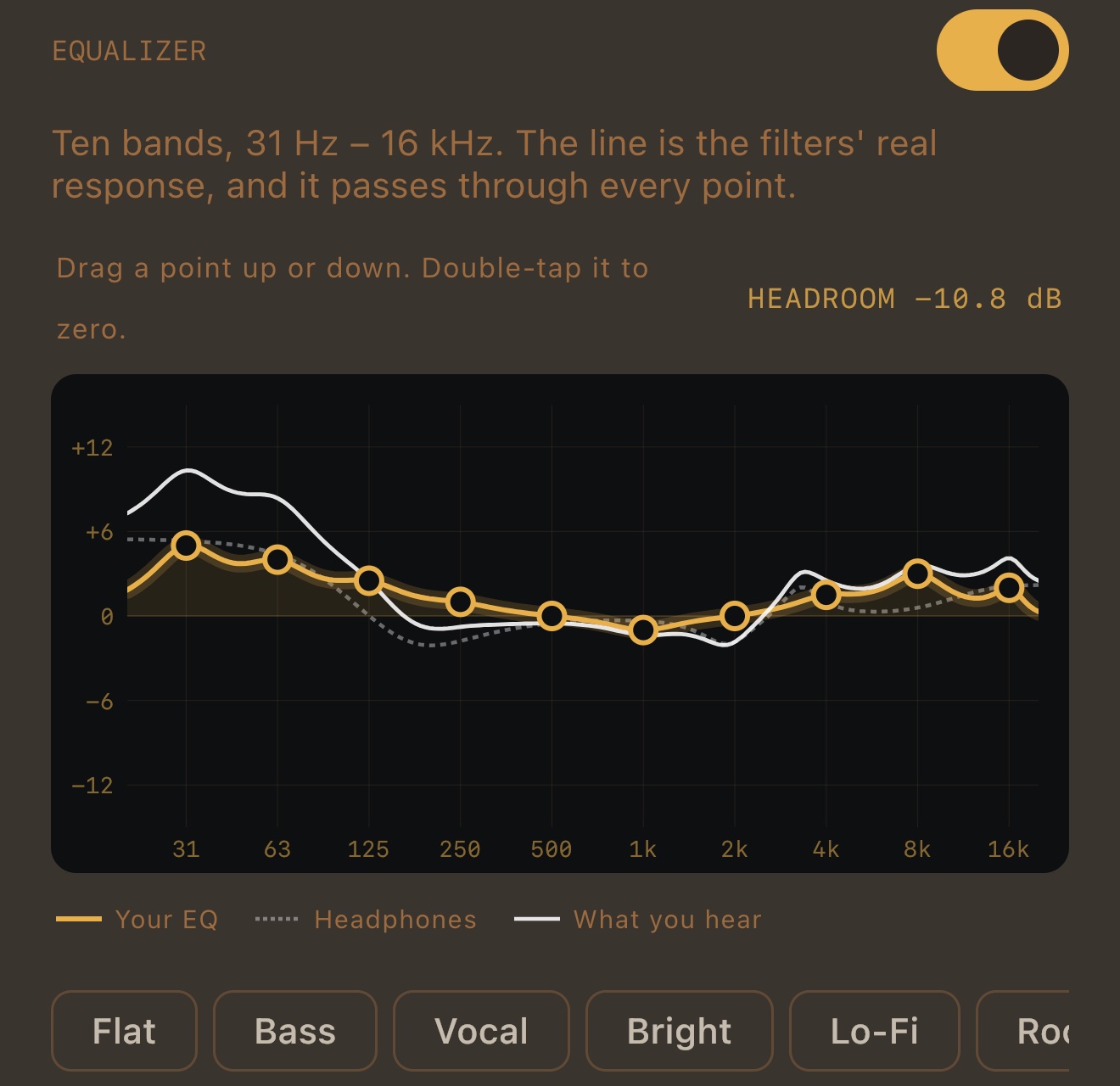
MP95's equalizer has ten bands from 31 Hz to 16 kHz. Drag a point to change its gain; double-tap a point to return it to zero. Begin with a small adjustment rather than lifting every band. The graph shows the filters' response, not just a decorative line between controls.
| Region | What to listen for |
|---|---|
| Low bass | Weight and rumble; small headphones may not reproduce deep bass strongly |
| Upper bass and low mids | Warmth, but also muddiness when excessive |
| Midrange | Voices and the body of many instruments |
| Treble | Brightness and detail, but also harshness |
These are listening cues, not universal presets. The same curve can behave differently with different headphones, ear pads, fit and recordings.
A boost needs room
Boosting a frequency adds level. With no headroom, peaks can exceed the available digital range. Lowering overall gain provides room; it does not mean the music has lost resolution in the way a lossy codec discards information.
MP95 shows headroom alongside its EQ and accounts for the combined curve when headphone correction is active. If playback becomes quieter after a correction, do not immediately undo it with large boosts. Compare at similar listening volume and check the whole curve.
Keep your adjustment separate from headphone correction
An AutoEQ profile addresses a measured headphone response. Your own EQ can then express a preference. In MP95, the graph distinguishes your EQ, the headphone correction and their combined response. Use the exact headphone model when selecting a profile.
A correction is a starting point, not a measurement of your own ears. If it sounds uncomfortable, reduce the adjustment or switch it off. There is no need to keep a curve merely because it came from a database.
Compare without rewarding the louder version
Toggle between the adjusted and flat settings at similar perceived volume. Check more than one song. Keep a setting only if it helps with the problem you identified without creating another one.
If roughness remains with the EQ flat, investigate the recording, volume and output device. EQ will not repair an already clipped source. For a check of unchanged digital output, disable EQ and the other processing stages; see MP95's bit-perfect guide.